
Khronometr for Windows
All your screen time — on the PC too
A real app for your computer: time in programs and games, your phone’s and tablet’s history, limits and records — in one window.
Windows 10 / 11, 64-bit only · 70.3 MB · free · 27 languages
Checks for updates every 6 hours and installs them by itself unless you turn that off; every update is checked with a digital signature.
How to install
- 1
Download and run
Download the file with the button above and run it. Khronometr offers to Install itself, for your user only and without admin rights. It appears in the Start menu.
- 2
If Windows warns you
If Windows says “Windows protected your PC”, click More info, then Run anyway. This happens to apps without a paid signature. What Khronometr adds to your PC is listed in the questions below.
- 3
Connect Google Drive
In Khronometr’s window click Connect Google Drive and choose the same account as on your phone. Your phone and tablet then show up here too.
- 4
Done
Khronometr keeps counting with the window closed: it lives next to the clock (in the tray) and starts with Windows. You can turn that off in Settings.
What it does
All the stats
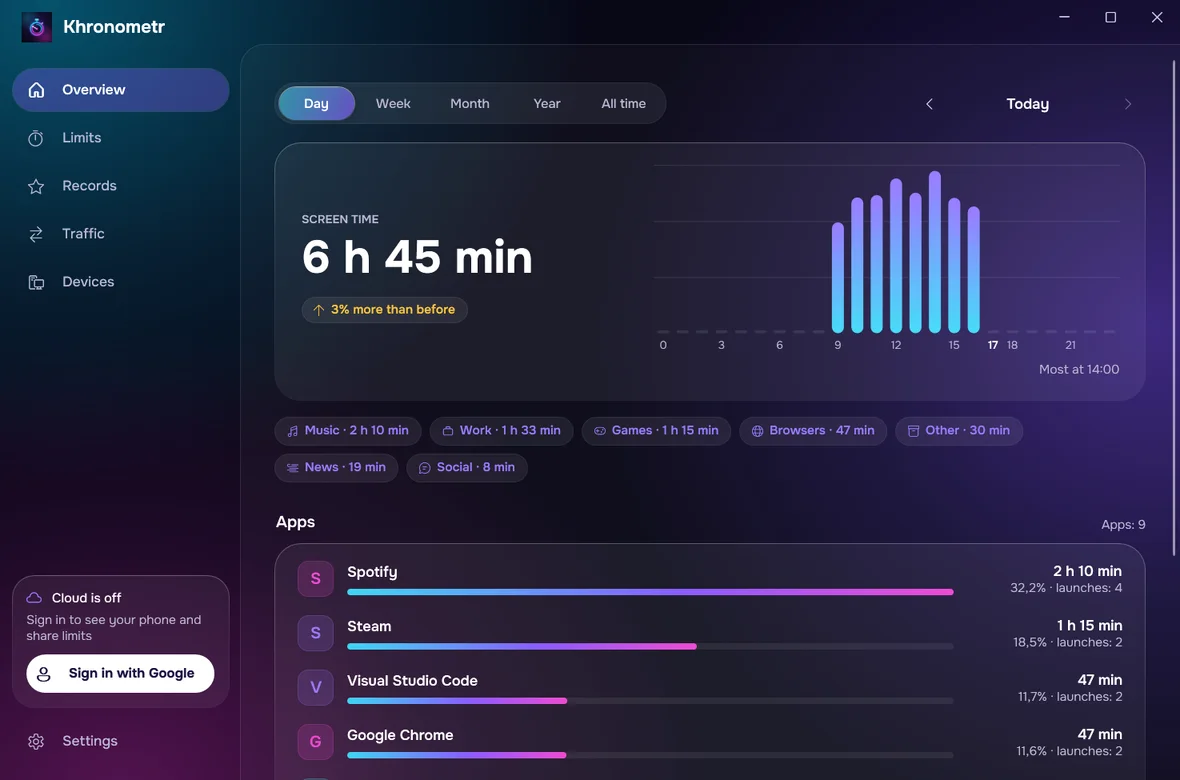
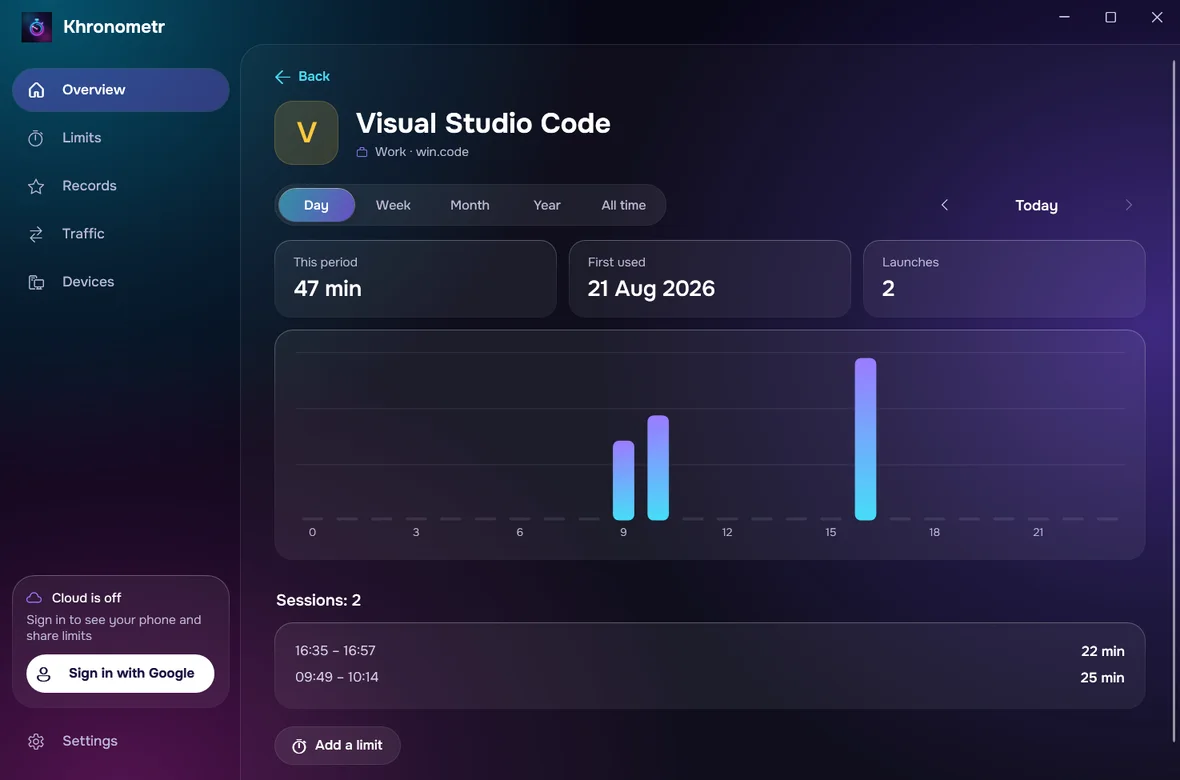
Day, week, month, year and all time: charts, categories, every app on its own — all devices together or one by one.
Your whole history
Time from your phone and tablet, older Android history and Steam playtime. Windows’ own journal can add roughly the last month or two of time and traffic, if you allow it.
Limits here too
Create and change limits right on the PC. Signed in, they work on your phone too; without sign-in they apply on this PC only. The “Time’s up” screen can always be closed.
Records and traffic
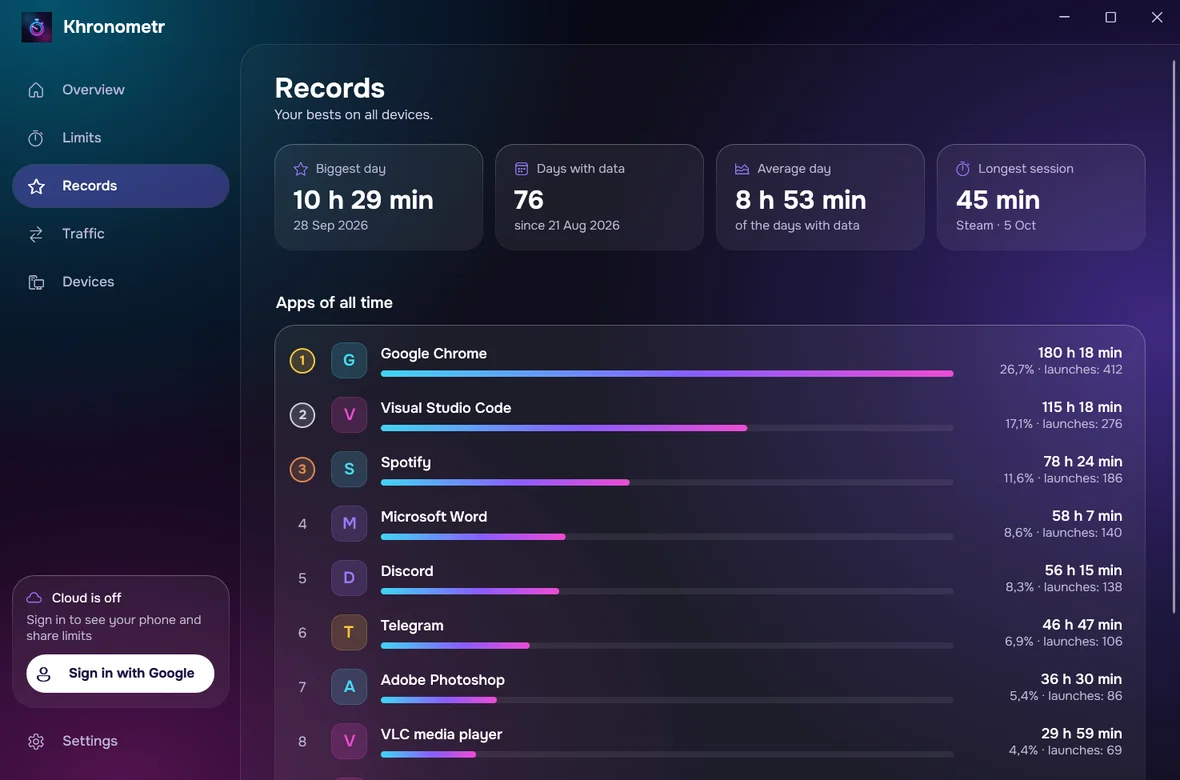
Your biggest day, longest session, all-time top programs and traffic per program. Traffic appears after you import Windows’ journal, which asks for admin rights once.
Updates itself
New versions are looked for every 6 hours and installed by themselves; a file without the author’s digital signature is never installed.
Only your Google Drive
Sync goes through a hidden folder on your own Drive. No servers, no ads.
Questions
What does the Windows warning look like?
A blue window titled “Windows protected your PC” with the text “Microsoft Defender SmartScreen prevented an unrecognized app from starting…”. Click More info under the text, then Run anyway, not Don’t run.
What does it add to my PC?
It installs for your user, with no admin rights: the program in %LOCALAPPDATA%\Programs\Khronometr, a Start menu shortcut, an entry in Installed apps and autostart. It also creates a task of your user, “Khronometr Watchdog”, that starts it again every 10 minutes if it is not running. Only if you choose to import Windows’ journal, Windows asks for admin rights once, and a task “Khronometr Journal” is created; it copies the journal every 6 hours into a folder in Program Files that only administrators and you can read.
Do I have to sign in with Google?
No. Counting, records and limits work on this PC without it. Sign in to see your phone and tablet here and to share limits with them.
How do I uninstall it?
Windows Settings → Apps → Installed apps → Khronometr → Uninstall. This removes the program, the shortcut, autostart, the Watchdog task and the Installed apps entry. The journal task, if you made one, notices and deletes itself and its Program Files folder, usually right away and at the latest at its next run, with no prompt. Your history stays in %LOCALAPPDATA%\Khronometr: delete that folder by hand to remove it, and delete the Drive copy in Google Drive settings if you used sync.
What’s new: 1.3.1
Fixed: the browser did not open for Google sign-in or for deleting the Drive copy when signed out. On a PC used by several Windows accounts, older journal days that may include other people's time are removed once. The install window says what continuing means.
How do I check the file?
The SHA-256 checksum of the file you download must match this one:
Your data stays yours
No Khronometr server, no ads, no tracking. Everything is kept on your devices and, if you want, in a hidden folder of your own Google Drive. The privacy policy lists the few outside requests the apps make.
Read the privacy policyQuestions and ideas: support@pegasohlib.com