
For Windows 10 and 11 (64-bit)
Oberih
An independent app for Microsoft Defender
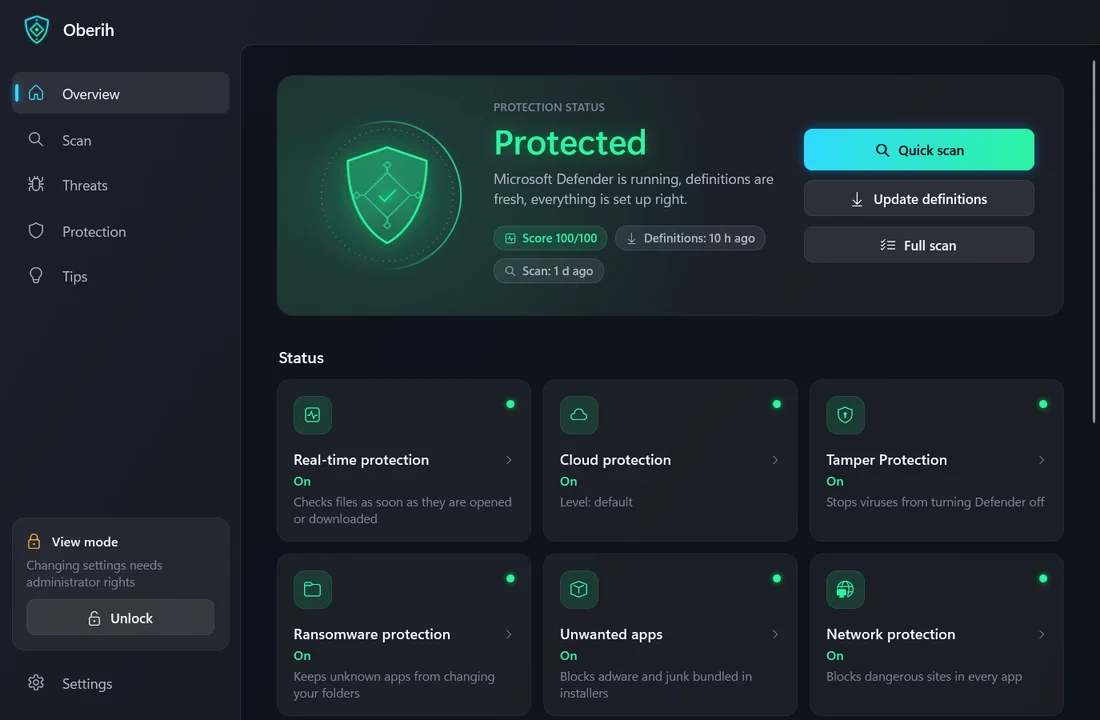
Microsoft Defender, the antivirus built into Windows, does the protecting. Oberih shows its status, runs scans, explains every setting in plain words and suggests how to stay safer.
It finds new versions itself; you press a button to install.
Free · no ads · 27 languages
How it works
Defender protects, and Oberih makes it easier to use.
- 1
Download and run
Download the file with the button above and run it. If Windows warns you, click More info, then Run anyway.
- 2
Install
Oberih offers to install itself: Start menu and desktop shortcuts, an entry in the Windows app list, updates from inside the app. No administrator rights needed.
- 3
See the status
The Overview shows at once whether the PC is protected and what to fix. The buttons run scans and update definitions; after Unlock they also turn on the right settings.
- 4
Unlock to change
To change something, press Unlock: Windows asks for permission once, and the rights last only until you close the window.
What it can do
Status at a glance
A shield with the protection status and tiles for real-time and cloud protection, Tamper Protection, the firewall, memory integrity, definitions, Windows Update, SmartScreen and more.
Scans with progress
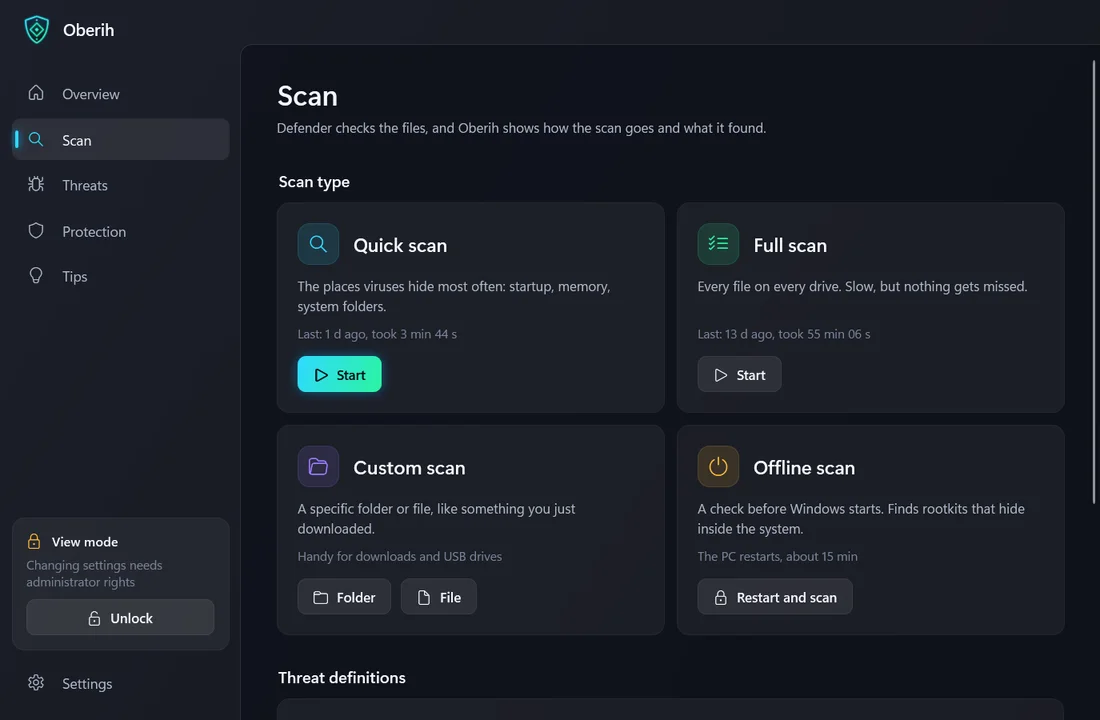
Quick, full, custom (a folder or a file) and offline scans. Defender reports no progress, so the percent and time left are an estimate. Scans started elsewhere show up too.
Threats and history
What Defender found, which program was involved, the detection history and the threats you allowed. A clear warning comes before anything risky.
Every setting explained
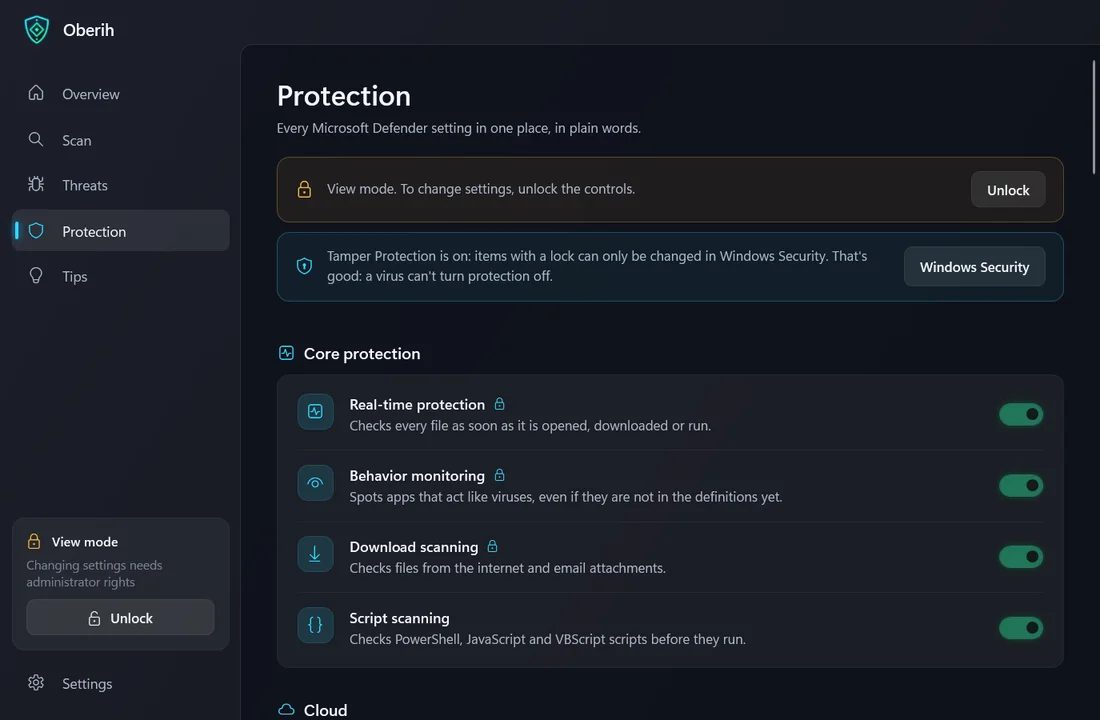
More than 30 Microsoft Defender settings in one place, in plain words: cloud, unwanted apps, network, scanning, schedule, exclusions. “Recommended” marks the safe choice.
Tips with ready fixes
Oberih checks this PC and says what to improve, with a button that turns it on or opens the right place. Plus 16 tips on passwords, 2FA, phishing, cheats and scams.
Ransomware protection
Oberih can turn on Defender’s controlled folder access, which keeps unknown apps from changing Documents, Pictures and other folders.
Your language, your look
27 languages, a light or dark theme or the same as Windows, and text size from 90 to 150 %.
Safe self-updates
While it is open, it checks for a new version at start and every 12 hours, and installs it only when you press the button. Updates are signed with the author’s key: Oberih won’t install a forged one.
Small things that help
A score from 0 to 100
Oberih turns what it finds on this PC into one number, so you see at a glance how protected you are.
Alert on a new threat
If Defender catches something while Oberih is open, you see a warning and hear a sound. It does not watch when the window is closed.
Risky exclusions flagged
It warns you when Defender is told to skip a whole drive, your user folder, Downloads or program types such as .exe and .ps1.
Runs without installing
Run the downloaded file as it is: no .NET to install, nothing needed from you. Installing only adds shortcuts and in-app updates.
Free · No ads, no tracking · No background service, no autostart
Questions
Windows says “Windows protected your PC”. Is that OK?
Yes. Windows shows this for files it doesn’t know well, such as apps without a paid code-signing certificate, and Oberih doesn’t have one. Click More info under the text, then Run anyway, not Don’t run. Oberih’s own updates are signed with the author’s key and checked before they are installed.
Is Oberih an antivirus?
No. Microsoft Defender, the antivirus built into Windows, does all the scanning and protecting. Oberih shows its status, manages its settings and explains them in plain words. If another antivirus is in charge, Defender is on standby, and Oberih tells you so.
Why does it ask for administrator rights?
Viewing works without them, except the exclusion list and quarantine. Changing settings and exclusions, allowing threats, restoring from quarantine, the offline scan and stopping a scan need them. Press Unlock, Windows asks once, and the rights last until you close the window. Oberih has no background service that could change settings at someone else’s request, and before unlocking it checks that its own file hasn’t changed since it started.
What if Tamper Protection blocks a setting?
Oberih doesn’t bypass it. Settings it guards are shown with a lock and can be changed only in Windows Security. That’s good: a virus can’t turn protection off either.
How do I remove it?
In Windows Settings → Apps, find Oberih and choose Uninstall, or use the button in Oberih’s Settings. The app, its shortcuts and its settings are removed; Microsoft Defender and all its settings stay as they are. Changes you made in Defender, such as exclusions, stay too. If you only ran the downloaded file without installing, delete it and the folder %LOCALAPPDATA%\Oberih.
How do updates work?
While Oberih is open, it reads a small file from pegasohlib.com at start and every 12 hours, if automatic checks are on (they are by default). If a newer version exists, a button appears. Only when you press it, the file is downloaded from GitHub, its signature and checksum are checked, and Oberih restarts as the new version.
What’s new: 0.3.6
The overview now says “No problems found” instead of “Protected”, counts more Defender settings, reads the state of other antivirus apps and shows “Not checked” for what it can't read. More risky changes ask first. The install window has a privacy link and an acceptance line.
How do I check the file?
The SHA-256 checksum of the file you download must match this one:
Your data stays on your PC
Oberih collects no data and has no servers, ads or tracking. It goes online only to check for updates and download them from GitHub, and you can turn the automatic check off.
Read the privacy policyQuestions and ideas: support@pegasohlib.com